
Overview #
This guide walks you through the process of accessing the IQNOX Widget Pack through a Group Subscription.
It covers how to:
- Set up and activate your account
- Gain access to your company’s subscription
- Manage access by inviting other employees to the subscription group
- Troubleshoot common download issues
By following this guide, subscription Owners can efficiently onboard their team and ensure everyone has access to the resources included in the IQNOX Widget Pack.
How the Subscription Works #
When a company purchases an IQNOX Widget Pack subscription, it is provisioned as a Group Subscription. This allows the company to grant download access to an unlimited number of employees.
Group Subscription Ownership #
Each Group Subscription must have a designated Owner. The Owner is responsible for managing the subscription and must have an active account on iqnox.com in order to receive access.
Account Creation and Activation #
To become the Owner:
- Sign up for an account on iqnox.com.
- Confirm your email address using the verification link sent during registration.
- Note: The account will remain inactive until the email is confirmed.
- Once confirmed, you can sign in to your account.
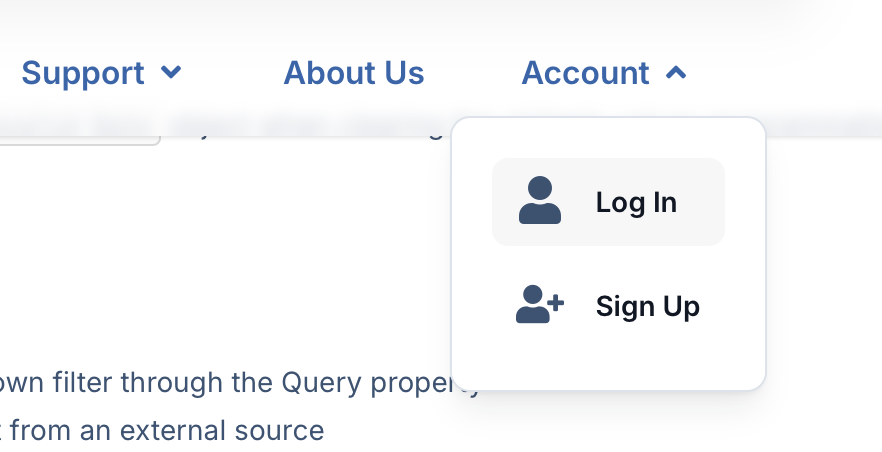
Subscription Provisioning #
After the Owner’s account has been successfully created and activated, an IQNOX Customer Success representative will:
- Create the Group Subscription
- Assign ownership to the designated Owner
- Grant access to the subscription
Once this process is complete, the Owner can begin managing access for their organization.
Inviting other employees to the Group Subscription #
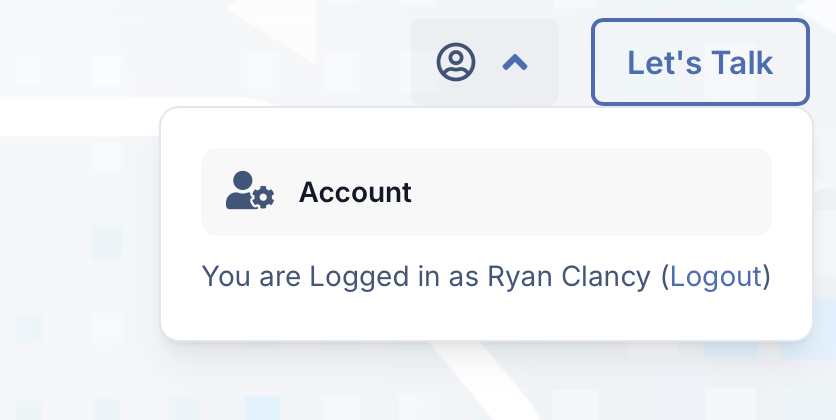
The group Owner can grant other employees access to the IQNOX Widget Pack by accessing their Account by opening the dropdown from the User icon in the top right corner.
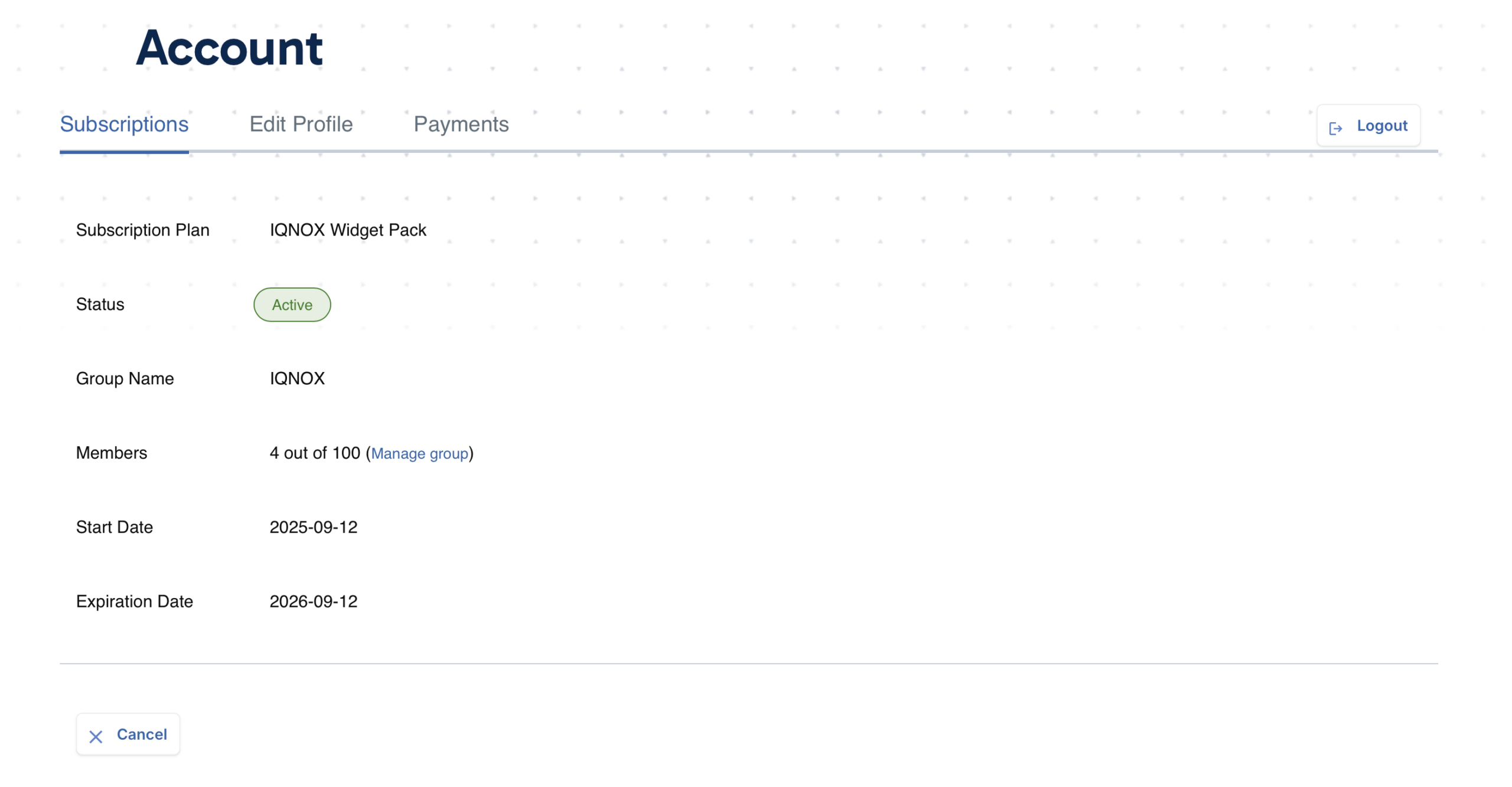
Navigate to Manage Group
And within the Manage Group interface, the Group Owner can remove and invite users to the subscription.
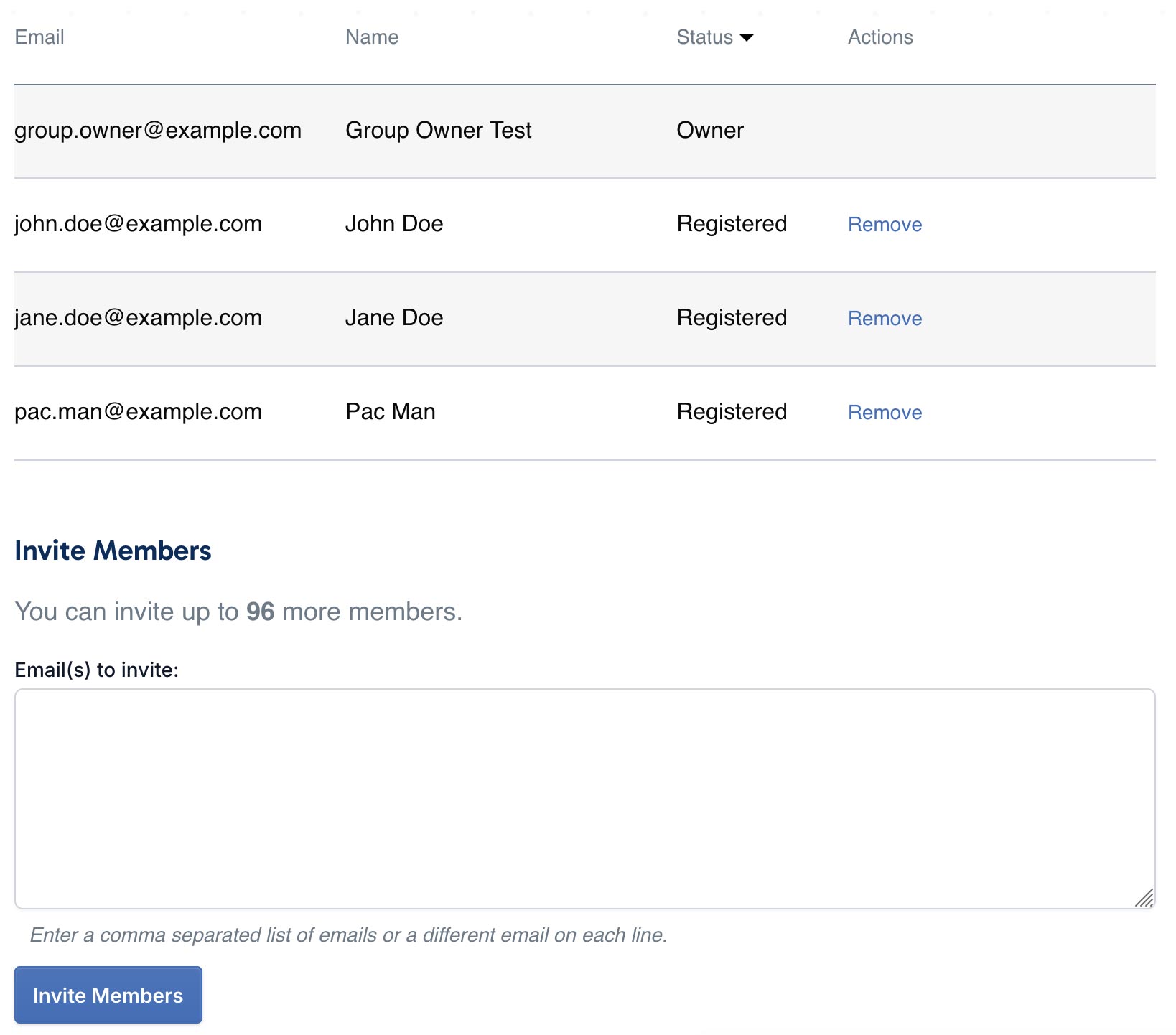
The invited user receives an email with instructions to join the group and access the Widget Pack.
⚠︎ WARNING
Invitation emails might be filtered or sent to spam by company security policy. Please make sure you check the spam folder.
Download the Widget Pack #
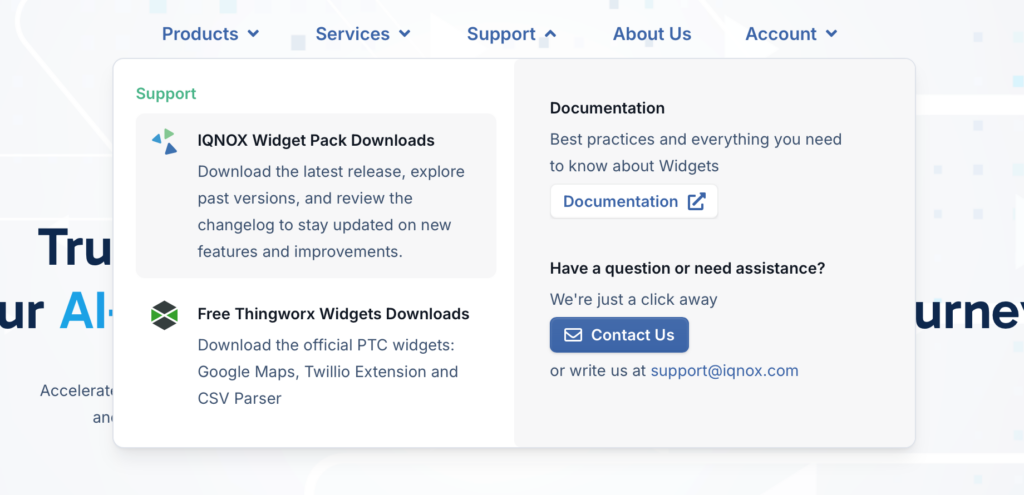
Open the Support menu, and select IQNOX Widget Pack Downloads.
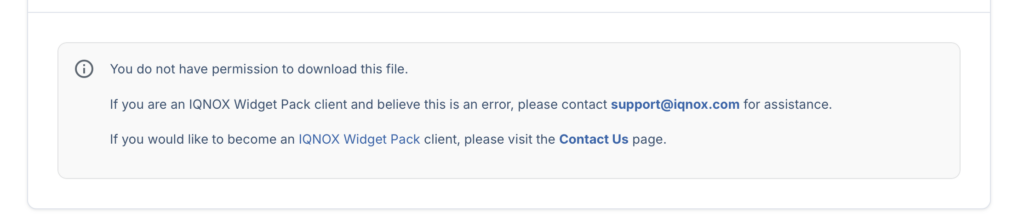
If not signed in, the download option is not available. The following message appears:
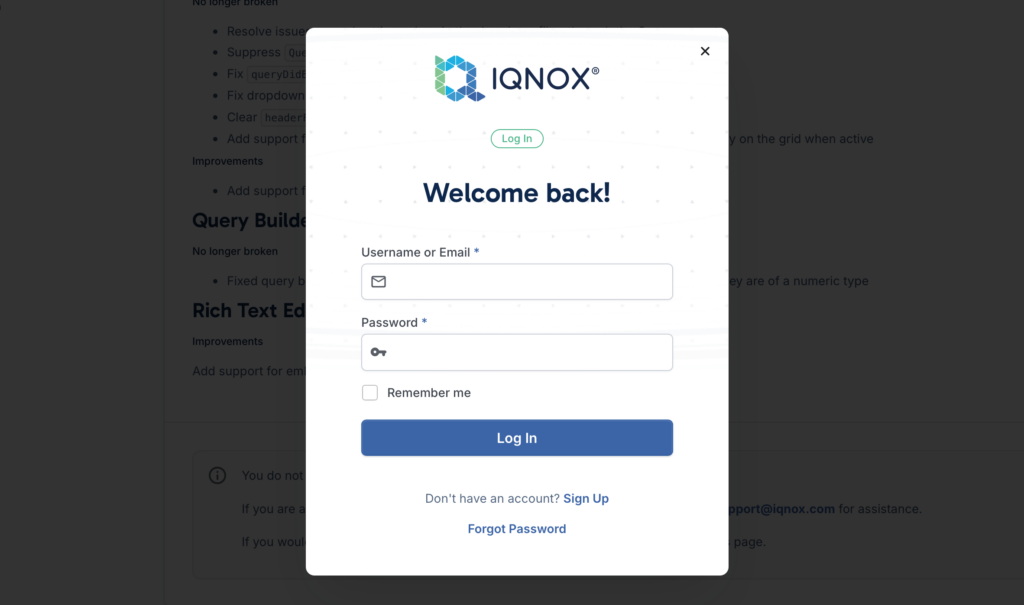
In the top menu, open the Account dropdown, and select Log In.
Enter your IQNOX Log In info.
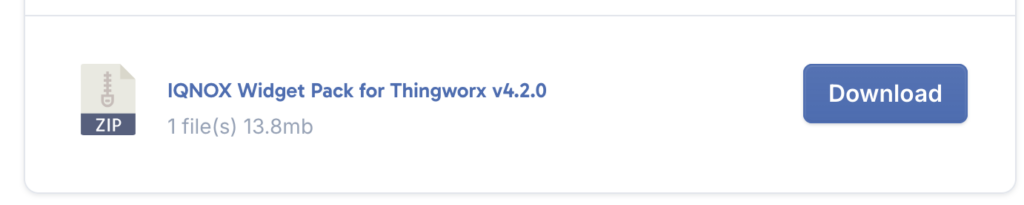
After signing in, return to the IQNOX Widget Pack Downloads page. You will notice now that the Download button is available.
Troubleshooting #
ℹ️ Downloading the zip file
Company security policy might restrict the download of .zip files from unknown locations. If you’re encountering any issues downloading the widgets, make sure you contact your IT Administrator.
 IQNOX
IQNOX